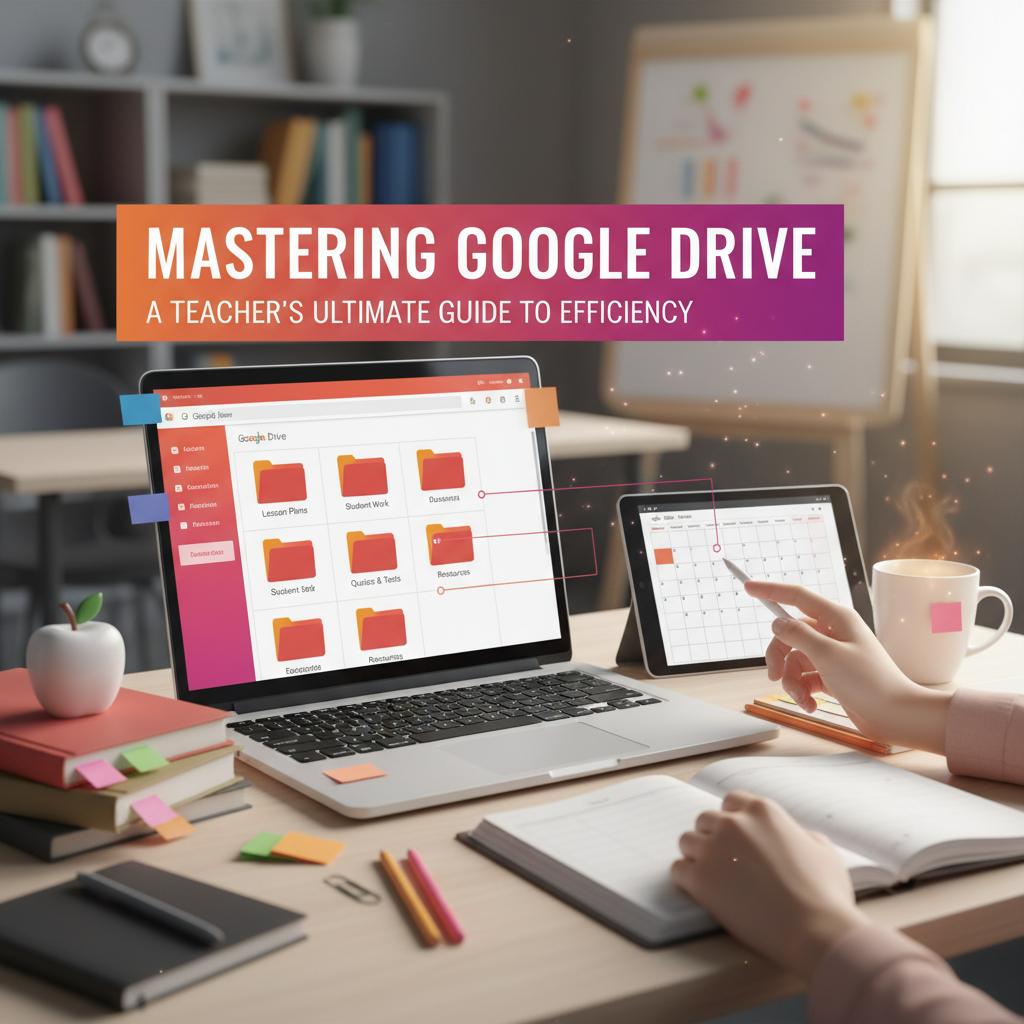
Mastering Google Drive: A Teacher's Ultimate Guide to Efficiency
Unlocking the Power of Google Drive for Educators In today's digitally-driven classrooms, mastering technology is non-negotiable for teachers aiming to inspire...
Unlocking the Power of Google Drive for Educators
In today's digitally-driven classrooms, mastering technology is non-negotiable for teachers aiming to inspire and engage students. Did you know that over 80% of U.S. K-12 schools now use Google's suite of educational tools? This statistic underscores why learning how to use Google Drive effectively can revolutionize how you teach, and ultimately, how your students learn.
Why Google Drive?
Google Drive is more than just a cloud storage service; it's your gateway to a seamless educational experience. Teachers can use it to store lesson plans, collaborate in real-time with students, and streamline administrative tasks. But the real magic lies in its capability to enhance your teaching methods while saving you precious time.
Getting Started: Setting Up Google Drive
Before diving into advanced features, ensure your Google Drive is set up correctly:
- •
Sign Up for a Google Account: If you don't have one, head to Google's account creation page and register.
- •
Access Google Drive: Navigate to drive.google.com and log in with your credentials.
- •
Organize Folders: Create a folder structure that reflects your teaching needs—perhaps by subject, semester, or class.
Pro Tip:
Use color-coded folders to quickly differentiate between subjects or priority levels. This visual cue reduces time spent searching for files.
Key Features Teachers Should Leverage
Collaboration with Google Docs and Sheets
- •
Real-Time Editing: Share documents with students for joint projects. Use the "Comments" feature to provide instant feedback.
- •
Version History: Never worry about losing important changes. Access previous document versions with a few clicks.
Streamlining Communication
- •
Shared Drives: Ideal for team-teaching scenarios. Everyone can access and edit resources without needing individual permissions.
- •
Google Classroom Integration: Seamlessly assign and collect homework, offer instant feedback, and foster a collaborative learning environment.
Expert Insight:
A recent case study showed that teachers who integrated Google Drive with Google Classroom reported a 20% increase in student engagement.
Overcoming Common Hurdles
"I’m Not Tech-Savvy."
Start small. Familiarize yourself with basic functions like uploading documents and creating shared folders. Google’s support page is an excellent resource for beginners.
"I’m Worried About Security."
Google Drive offers robust security features. Ensure two-factor authentication is enabled and familiarize yourself with sharing permissions to keep sensitive information secure.
Taking It to the Next Level
Advanced Tips for Efficiency
- •
Templates: Create and use templates for lesson plans, attendance records, and parent communications to save time.
- •
Google Forms: Use these for quick quizzes or surveys, automatically collecting and organizing data in Google Sheets.
Integrating Multimedia
- •
YouTube and Google Slides: Embed YouTube videos in Google Slides for interactive lessons.
- •
Google Drawings: Create diagrams directly in your Drive to enhance visual learning.
Conclusion: Transform Your Teaching
By integrating Google Drive into your daily routine, you can:
- •
Enhance collaboration with students
- •
Streamline administrative tasks
- •
Improve classroom engagement
Call to Action:
Start today by organizing one aspect of your teaching with Google Drive. Share your experiences with colleagues, and explore how these changes impact your teaching.
What’s your biggest challenge with Google Drive? Let us know in the comments!
Enjoyed this article?
Subscribe to our newsletter to get more tips and insights delivered to your inbox.