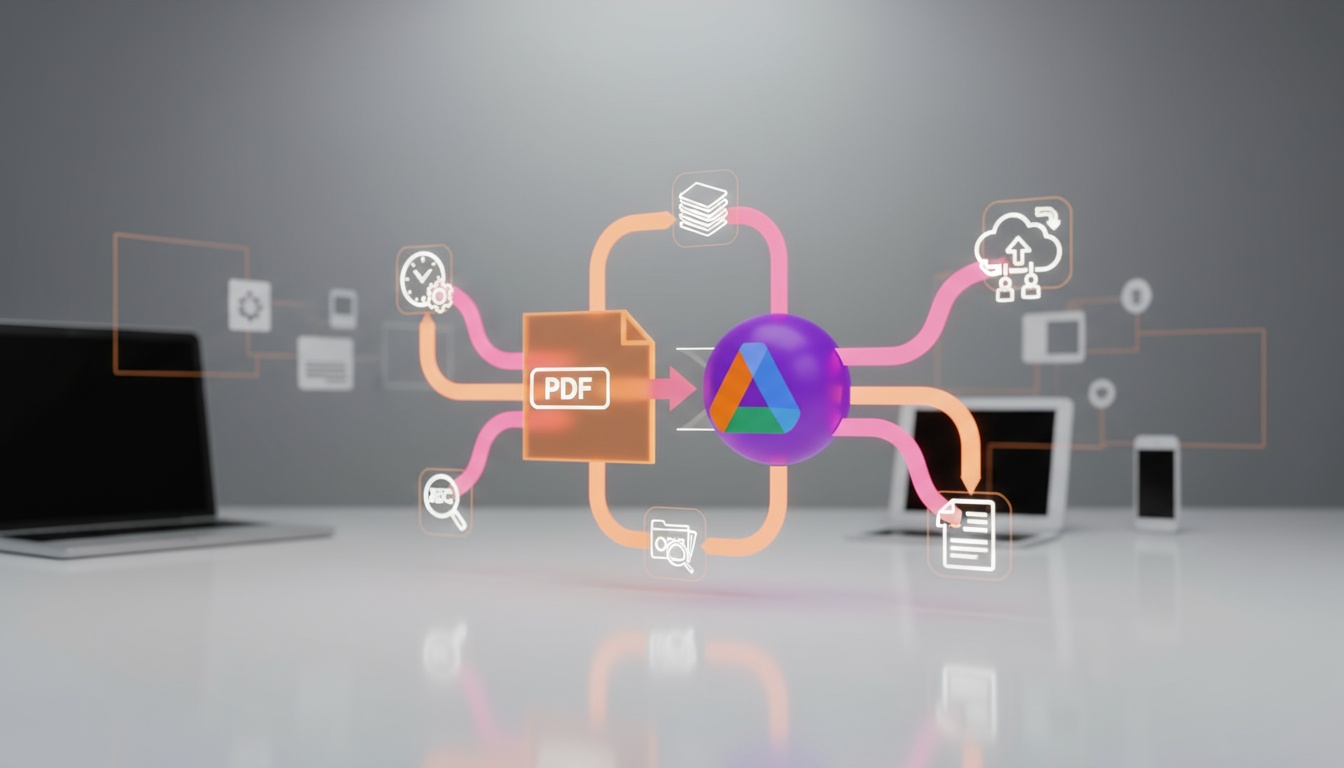
5 Smart Ways to Automate Your PDF Workflows Using Google Drive PDF Conversion Tool
Google Drive’s PDF conversion capabilities have quietly become the backbone of many document workflows. Converting Google Docs to PDF is not just about...
Google Drive’s PDF conversion capabilities have quietly become the backbone of many document workflows. Converting Google Docs to PDF is not just about preserving layout; it's about automating repetitive tasks so teams spend less time on formatting and more on work that matters. The Google Drive PDF conversion tool can be combined with built-in features and simple automations to create secure, repeatable processes that scale.
What is the Google Drive PDF conversion tool and why it matters
Google Drive PDF conversion tool is a native capability that converts Google Docs, Sheets, and Slides into PDF format while preserving layout and links. This conversion often triggers downstream actions—emailing contracts, archiving invoices, or preparing print-ready files. Because PDFs are widely accepted across platforms, automating conversion reduces manual errors, enforces consistent output, and speeds approvals. For detailed conversion techniques and alternatives, see this comprehensive guide on Google Drive PDF conversion tool. External documentation from Google explains file export options in depth: Google Drive Help.
How to set up basic automation with Google Workspace tools
Automations typically start inside Google Drive and extend through Google Workspace. Use Google Apps Script to watch a folder and automatically export new Google Docs as PDF. Apps Script can rename files, add timestamps, and move PDFs to folders. For non-coders, the built-in Make a copy and Download as PDF flows work, but they require manual intervention. Automations often integrate with third-party platforms; Zapier and Make can detect a new file in Drive and run a conversion step. When designing flows, prioritize naming conventions, permission settings, and version control to avoid overwriting important documents. For classroom or education settings, educators often prefer plugins; learn why in this post on Google Drive PDF conversion tool.
Five smart ways to automate PDF workflows (step-by-step)
Automating with real-world intent focuses on repeatable results. 1. Auto-export finalized Docs: Use Apps Script or an automation platform to export when a doc’s label changes to "Final." 2. Merge documents into a single PDF: Create a script to combine multiple Docs into a consolidated PDF for reports. 3. Auto-apply watermarks or headers: Convert to PDF and run a lightweight PDF-processing step with an API. 4. Archive and index: After conversion, move PDFs into dated folders and write metadata to a spreadsheet for search. 5. Auto-send on trigger: When a document becomes final, convert to PDF and email it with a templated message. Each method reduces manual tasks and enforces consistency across teams.
Practical examples, common scenarios, and limitations
Common scenario: a sales team finalizes proposals as Google Docs. With a folder trigger, each final doc becomes a PDF, is stamped with a timestamp, stored in archival folders, and emailed to the client automatically. Hypothetical example: a nonprofit automates grant report PDFs to ensure compliance and central records. Limitations include complex PDF editing after conversion and dependency on third-party services for advanced processing. Security considerations matter: set Drive permissions before automating sends and consider encryption or password protection for sensitive PDFs (verify current best practices). For integration-focused educators looking for classroom-ready plugins, see the teacher-centered benefits at Google Drive PDF conversion tool.
Tips, best practices, and troubleshooting
Start small and validate outputs frequently. Keep filenames predictable with YYYYMMDD_Project_Title.pdf to support automated sorting. Test conversion on samples with complex formatting—tables, images, and footnotes—because layout shifts occasionally occur. Monitor quotas and execution time for Apps Script; larger batches may require batching or external processors. When using third-party services for advanced PDF manipulations, review privacy policies and use reputed vendors; Adobe’s resources on PDF workflows are a useful reference: Adobe Acrobat help. If attachments fail to send, check Drive sharing settings and service account permissions. Document each automation's rollback plan so accidental exports can be reversed.
Frequently Asked Questions
What file types can be converted to PDF in Google Drive?
Google Docs, Sheets, Slides, and many uploaded files can be exported as PDF. Some formats may require conversion to a Google-native format first.
Can I automate conversion without coding?
Yes. Automation platforms like Zapier or Make can watch Drive folders and handle conversions, though advanced post-processing may require scripts.
Are PDFs searchable after conversion?
Text-based Google Docs convert into searchable PDFs. Scanned images may need OCR from specialized tools.
How do I keep PDFs secure when automating emails?
Restrict Drive sharing, use secure email protocols, and consider password-protecting PDFs via trusted PDF tools (verify current methods).
Will conversion preserve links and bookmarks?
Links typically remain active, but complex bookmarks or cross-references should be tested before mass automation.
Next Steps
Experiment with one automation rule this week: set a folder to accept only final documents and create a simple Apps Script or Zap that exports new files to PDF and moves them into an archive folder. Track time saved and iterate—small wins compound into significant efficiency. Automating PDF workflows around the Google Drive PDF conversion tool is an investment that reduces repetitive work, tightens compliance, and scales document processes across organizations.
Enjoyed this article?
Subscribe to our newsletter to get more tips and insights delivered to your inbox.